
Direct answer
What you need to know
Changed your router, moved home or updated your Wi-Fi password? Your SoundTouch speaker may simply need new network details. Connecting it to the network and discovering it in a controller app are two separate steps. In SoundTick versions that include Speaker Setup, use that feature to connect a supported speaker to your chosen Wi-Fi network. The updated Bose SoundTouch app also retains local setup and configuration.
Availability and testing boundary
This guide describes the Speaker Setup workflow present in the current shared iOS and Android product code. Availability depends on the installed SoundTick version. Publication of this guide is not a claim of App Store or Google Play release acceptance, or of a completed physical-speaker setup test on every model.
Changed your router, moved home or updated your Wi-Fi password? Your SoundTouch speaker may simply need new network details. Connecting it to the network and discovering it in a controller app are two separate steps.
In SoundTick versions that include Speaker Setup, use that feature to connect a supported speaker to your chosen Wi-Fi network. The updated Bose SoundTouch app also retains local setup and configuration.
Real SoundTick screens
See the relevant controls in the current app.
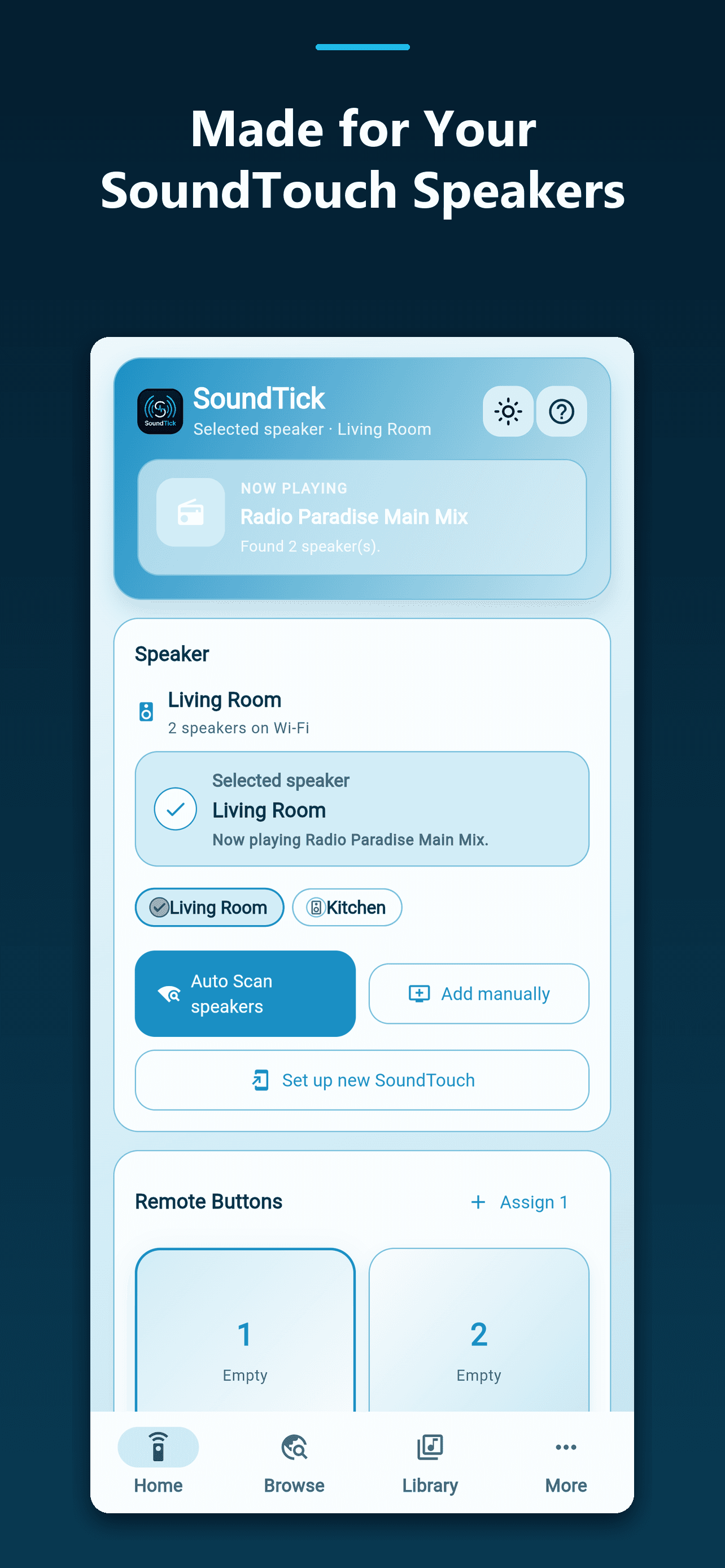
First, decide whether setup is actually necessary
If the speaker is already online and another controller can find it, avoid reconfiguring it immediately. Start with permissions and discovery checks in SoundTick.
If the network name or password changed, reconnecting is more likely to be necessary. Bose’s SoundTouch 10 guide specifically describes using setup mode when moving the speaker to a new network.
Have the exact speaker model, home Wi-Fi name and password ready. Work near the speaker so you can see its status indicators and respond to any setup prompts.
Step 1: Put the speaker into the correct setup mode
Use instructions for your exact model. SoundTouch products do not all share the same controls, so a button combination for a standalone speaker should not be assumed to apply to a soundbar or adapter.
For the SoundTouch 10, Bose documents holding preset 2 and Volume – together to enter setup mode. Follow the Wi-Fi indicator instructions in the model’s guide rather than substituting a factory-reset procedure.
A reset is not the first troubleshooting step. Identify the actual problem before erasing an existing configuration.
Step 2: Open Speaker Setup in SoundTick
Open the setup feature and follow its connection prompts for the supported speaker. Approve the system’s request to join the speaker’s temporary setup network when required.
A temporary speaker network is used for configuration; it is not your normal home internet connection. Complete the guided setup rather than manually switching between networks partway through it.
If Speaker Setup is not present in your installed SoundTick version, check for an app update. You can also use the Bose app’s local setup route, then return to SoundTick for discovery and listening.
Step 3: Supply the home Wi-Fi details
Choose the home network and enter its password carefully. Watch for similar network names, capital letters and accidental spaces.
Use a network the speaker supports. If a dual-band router causes setup problems, Bose’s troubleshooting guidance recommends testing the 2.4 GHz network and checking guest-network settings. This is a diagnostic step, not proof that every SoundTouch model is limited to the same Wi-Fi band.
Do not weaken network security or make the network open merely to complete setup.
Step 4: Rejoin home Wi-Fi and discover the speaker
After configuration, ensure the phone is back on your home network. Then return to SoundTick and run discovery.
On iPhone, enable Settings → Privacy & Security → Local Network → SoundTick. On Android, review the permissions requested by your installed app rather than assuming iPhone’s settings apply.
If automatic discovery fails, check the router’s device list for the speaker. SoundTick can also use a current local IP address. Manual entry can help with discovery restrictions, but it cannot connect a speaker that never joined the network.
Step 5: Test one complete listening session
Select a station, start playback and adjust the volume. Then stop and restart it. With more than one speaker, test each individually before creating a group.
Record the working network and app version. That gives you a useful reference if a later change introduces a problem.
Frequently asked questions
Why is my speaker connected but still missing from SoundTick?
Check whether the phone and speaker can communicate across the network. Guest isolation, VPN settings or discovery restrictions can interfere even when both devices have internet access. Use the speaker-not-found guide.
Should I reset the speaker whenever I change a router?
Do not start there. Use the model’s reconnect or setup procedure first. A factory reset is a separate operation and should only be considered when the applicable instructions call for it.
Once the connection is working, move on to the enjoyable part: choosing what to play.
Read how to find internet radio on SoundTouch.
SoundTick is an independent application and is not affiliated with or endorsed by Bose Corporation. Bose and SoundTouch are trademarks of Bose Corporation, used here to describe compatibility.
Sources and boundaries
Evidence used for this guidance.
Product instructions describe SoundTick's intended behavior. External claims are linked to their primary source. Actual compatibility still depends on the speaker, firmware, phone permissions and network being tested.
- Bose: SoundTouch end-of-service update Reviewed5 September 2026
- Bose: SoundTouch 10 owner guide (network changes, English page 14) Reviewed5 September 2026
- Bose: SoundTouch 10 setup-mode instructions within its update guide Reviewed5 September 2026
- Bose: SoundTouch 10 network setup troubleshooting Reviewed5 September 2026
- Apple: local-network access on iPhone and iPad Reviewed5 September 2026
- SoundTick: speaker discovery troubleshooting Reviewed5 September 2026
- SoundTick testing methodology
- Current known limitations
Related guidance